
ShipToECL
ShipToECL[Model, ContainerLabel]⟹Transaction
send samples and items to ECL. After generating your transaction, you will be able to print ID stickers to label the items and sample containers.
ShipToECL[Transaction]⟹UpdatedTransaction
update an existing Transaction to add shipping information (such as tracking number, shipper, date shipped, and expected delivery date).
Details
- Samples destined for ECL-2 (Austin, TX) should be addressed as follows: c/o SAMPLES Emerald Cloud Lab Customer Receiving 15404 Long Vista Drive Austin, TX 78728 The following phone number may be added for the recipient contact information: 512-226-3002.
Input

Output

Container Information Options
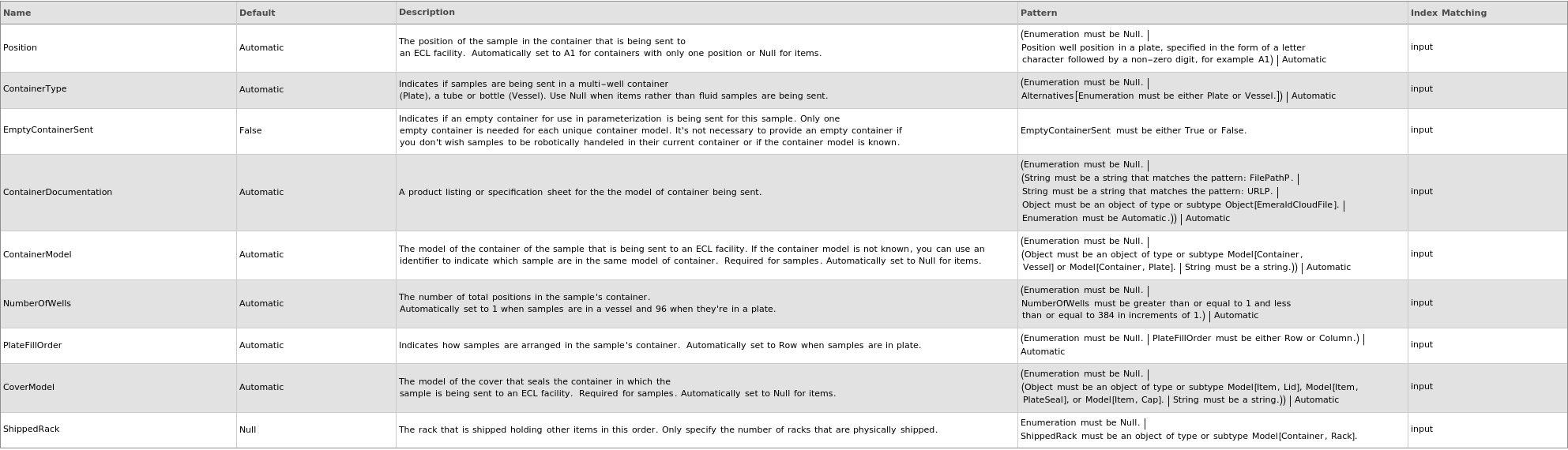
Organizational Information Options

Sample Properties Options

Sample Storage Options

Shipping Information Options

General Options

Examples
open allclose allBasic Examples (3)
Additional Examples (25)
Generate Transactions (22)
Accepts listed input (samples in plates):
Accepts listed input (samples in vessels):
Accepts semi-listed input (items):
Accepts semi-listed input (samples in vessels):
Accepts single input (1 sample in a plate):
Accepts single input (1 sample in a vessel):
A new sample is generated for each input:
If model containers are specified, new containers are made with the specified names and samples are put into the correct containers:
If position is not specified for a single-position container, the single position of the container will be used:
If the different container names are specified,the samples will be put into different containers:
If the same container name and model are specified, the samples will be put into the same container:
If the same container name and model is used for a plate, samples will be put into the same plate:
Items inherit the source site as their container:
Samples have the specified positions:
The logged in user is specified as the Creator of the Transaction object:
The samples and input containers get the status Transit:
The samples get the destination:
The source of the new samples (and any new containers) is the transaction object created to track their shipment:
The transaction status is updated by the currently logged in user when creating a transaction:
Update Transactions (3)
Options (74)
ContainerDocumentation (3)
ContainerOut (2)
Count (4)
CoverModel (4)
CoverModel can be specified as Null in cases where the container is self covering:
CoverModel may be specified for some inputs and not others:
CoverModel will be automatically resolved to a placeholder model:
CoverModel will correctly resolve to Null in cases where the ContainerModel is self covering:
DateShipped (6)
Specify a date shipped for each object when generating a transaction. Samples different with dates shipped are put into separate transactions:
Specify a date shipped for each object when updating shipping information:
Specify a date shipped for some but not all of the objects when generating a transaction. If DateShipped is specified, Status is Shipped; otherwise, Status is Pending:
Specify a date shipped when generating a transaction:
Specify a date shipped when updating shipping information:
When updating shipping information, Automatic DateShipped will leave the existing date shipped in place:
EmptyContainerSent (2)
ExpectedDeliveryDate (7)
Specify an expected delivery date for each object when generating a transaction. Samples with different dates shipped are put into separate transactions:
Specify an expected delivery date for each object when updating shipping information:
Specify an expected delivery date for some but not all of the objects when generating a transaction.:
Specify an expected delivery date for some but not all of the objects when updating shipping information:
Specify an expected delivery date when generating a transaction:
Specify an expected delivery date when updating shipping information:
When updating shipping information, Automatic ExpectedDeliveryDate will leave the existing date expected in place:
Mass (5)
Name (3)
NumberOfUses (3)
NumberOfWells (1)
PlateFillOrder (1)
Product (3)
ReceivingTolerance (1)
ShippedRack (2)
Shipper (7)
Specify a shipper for each object when generating a transaction. Samples with different dates shipped are put into separate transactions. (TrackingNumber and Shipper must be provided together.):
Specify a shipper for each object when updating shipping information:
Specify a shipper for some but not all of the objects when generating a transaction. (TrackingNumber and Shipper must be provided together.):
Specify a shipper for some but not all of the objects when updating shipping information:
Specify a shipper when generating a transaction. (TrackingNumber and Shipper must be provided together.):
Specify a shipper when updating shipping information:
When updating shipping information, Automatic Shipper will leave the existing Shipper in place:
Source (2)
StorageCondition (4)
TrackingNumber (7)
Specify a tracking number for each object when generating a transaction. Samples with different dates shipped are put into separate transactions. (Shipper must be provided along with tracking number):
Specify a tracking number for each object when updating shipping information. (Shipper must also be provided, or must already be populated in the transaction object):
Specify a tracking number for some but not all of the objects when generating a transaction. (TrackingNumber and Shipper must be provided together.):
Specify a tracking number for some but not all of the objects when updating shipping information. (Shipper must also be provided, or must already be populated in the transaction object):
Specify a tracking number when generating a transaction. (Shipper must be provided along with tracking number):
Specify a tracking number when updating shipping information. (Shipper must also be provided, or must already be populated in the transaction object):
When updating shipping information, Automatic TrackingNumber will leave the existing tracking number in place:




































































